After I wrote Encrypt Your Flashdrive With TrueCrypt In Ubuntu, some of my friends asked if TrueCrypt could work in Windows 7. And I said, of course it would work. TrueCrypt works on multiple platforms such as Windows and Linux. For Mac? I don’t know yet — I haven’t tried.
As you read in the previous article, TrueCrypt is an open source software that helps you set up and maintain an on-the-fly encrypted volume. On-the-fly encryption means data is automatically encrypted or decrypted right before it is loaded or saved, without any user intervention. You need a keyfile and/or a password to access the data stored in an encrypted volume (file). TrueCrypt encrypts the entire filesystem — including file names, folder names, contents of every file, free space, metadata, and so on.
TrueCrypt features:
- Creates a virtual encrypted disk within a file and mounts it as a real disk.
- Encrypts an entire hard disk partition or a device, such as a USB flash drive.
- Encryption is automatic, real-time (on-the-fly) and transparent.
- Provides two levels of plausible deniability, in case an adversary forces you to reveal the password: * Hidden volume (steganography). * No TrueCrypt volume can be identified (volumes cannot be distinguished from random data).
- Encryption algorithms: AES-256, Blowfish (448-bit key), CAST5, Serpent, Triple DES, and Twofish. Mode of operation: LRW (CBC supported as legacy).
To install TrueCrypt on Windows:
- Download the installation file from the TrueCrypt official site.
- Select TrueCrypt for Windows.
- Run the installation.
- After it finishes it will be available under the program files menu.
How to encrypt your flash drive with TrueCrypt in Windows:
- Run TrueCrypt.
- Create Volume.
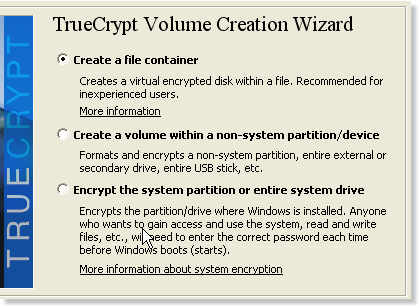
- In the TrueCrypt volume creation wizard, select “Create a volume within partition drive” option. Click “Next”.
- Leave it at the default “Standard TrueCrypt volume”. Click Next.
- Select the volume location. Choose where your USB flash drive is mounted. Click Next.
- Choose the encryption algorithm and hash algorithm. AES or TwoFish are strong encryption algorithms. Click Next.
- It will ask how large your encrypted partition should be. If you want to encrypt the entire flash drive, leave it as default. Click Next.
- Set the volume password — this is recommended to be at least 20 characters. Alternatively you can use generated keyfiles. Store them safely. Click Next.
- Format the volume file. It will ask what file system you want to use for your flash drive. Ext3 would be good.
- Choose whether you want cross-platform support for your mounted volumes or not. Click Next.
- Format the TrueCrypt volume file by clicking the “Format” button.
- This will take a while depending on how large your flash drive is.
To mount an encrypted flash drive:
- Plug in your flash drive and run TrueCrypt.
- Select the encrypted volume device.
- Select an empty slot. TrueCrypt offers over 60 slots to mount more than one encrypted volume.
- Click on the “Mount” button to mount the encrypted file. It will ask you for the password or keyfiles.
- If you are authenticated, you will see a new mounted volume.
To unmount an encrypted flash drive:
- Open TrueCrypt.
- Select the mounted slot.
Visit TrueCrypt Documentation for more details like encrypting and hiding your operating system.