SQLite is a software library written in C that implements a self-contained (very minimal support from external libraries), serverless (read/write process directly to database file), cross-platform (runs in any operating system), zero-configuration (no setup/installation needed), transactional (implements serializable transactions) SQL database engine. SQLite is relatively small, approximately 275 KB in size, and uses a single database file.
For me SQLite is a better solution rather than using MS Access for medium to small scale applications, because it is cross-platform and I don’t need to install Microsoft Office on client computers. And because it doesn’t need any configuration, just plug and play the application and run it anywhere. Very convenient. And also SQLite supports custom functions and trigger functions. In MS Access you need to write your custom function in VBA, but in SQLite you can write your custom function in your own language and later it will automatically bind to the SQLite process.
Advantages of SQLite:
- Zero-Configuration
- Serverless
- Single Database File
- Stable Cross-Platform Database File
- Compact Size
- Variable-length records
- Free with Public Domain license
Disadvantages of SQLite:
- In most cases database size is restricted to 2 GB
- Not fully SQL92 compliant
- Locks whole file while writing
- No caching mechanism
- Not very scalable
Next I will show you how to use SQLite with C# programming language. To access SQLite in C# you need to use SQLite ADO.NET, which you can download here.
Now follow this instruction:
1. Open your Visual Studio 2005/2008 (I’m using 2008 Express)
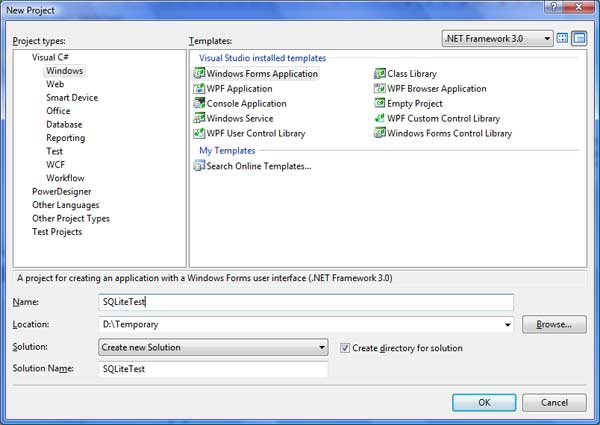
2. Create a C# project, you can call it “SqliteTest”
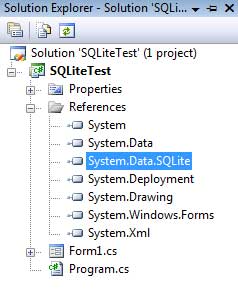
3. Import the DLLs from SQLite ADO.NET (System.Data.SQLite.dll)
4. Change the “Copy Local” property of System.Data.SQLite.dll to true, so this DLL will be copied when compiled
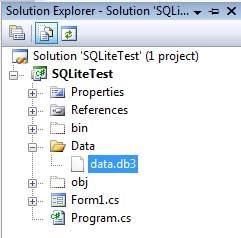
5. Then add a new folder called Data — we are going to put the database file here.
6. Add the database file, then change the “Copy To Output Directory” property to “Always”
7. Now select the Form1 design and insert a DataGridView, adjust the properties as you like
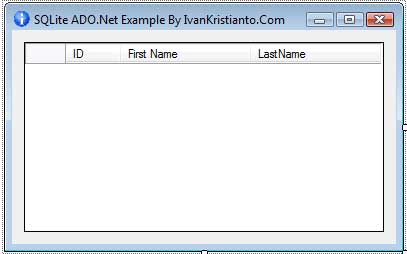
8. Double-click Form1 so you will go to the text editor and into the Form1_Load event
9. Add this code:
private void Form1_Load(object sender, EventArgs e)
{
SQLiteConnection ObjConnection = new SQLiteConnection("Data Source=Data/data.db3;");
SQLiteCommand ObjCommand = new SQLiteCommand("SELECT * FROM PERSON", ObjConnection);
ObjCommand.CommandType = CommandType.Text;
SQLiteDataAdapter ObjDataAdapter = new SQLiteDataAdapter(ObjCommand);
DataSet dataSet = new DataSet();
ObjDataAdapter.Fill(dataSet, "Person");
dataGridView1.DataSource = dataSet.Tables["Person"];
}
10. And last, don’t forget to add this code to the top of the file:
using System.Data.SQLite;11. Compile and run the file. And you are connected to the SQLite database. You can do any experiment like Insert, Update and Delete operations or do other complex queries.
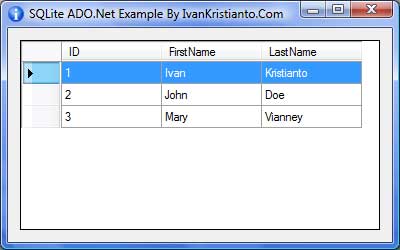
You can download the example project and database file from those instructions above here.
Thanks for reading this article, please leave me any comment or any tips you would like to share. Good luck.