You can boot an Ubuntu ISO without burning it to a CD. This is very useful if you want to test the latest Ubuntu without installing it. In some cases I use the Ubuntu Live CD to fix my Windows. You can use the Ubuntu Live CD to do anything without changing any data on your hard drive. I find this very useful and I keep a USB stick with 4GB containing an Ubuntu Live CD.
To create the Ubuntu Live CD on a USB stick, you can use Unetbootin. With this tool, you can create a bootable USB stick. And more than that, you can do this for most major Linux distros such as Debian, CentOS, Fedora, Backtrack, etc. But for now I will show you how to create an Ubuntu Live USB.
Create Ubuntu Live USB
1. Download Unetbootin.
2. Download the Ubuntu Desktop latest ISO here.
3. Run Unetbootin.
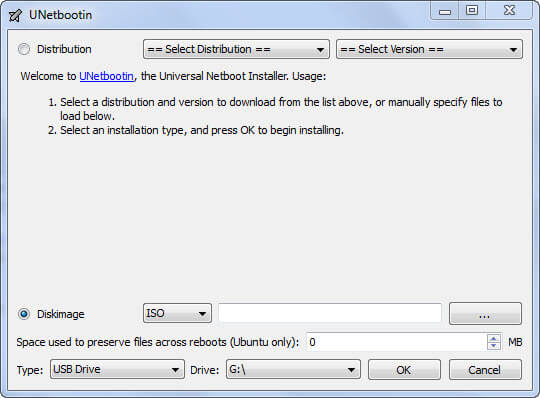
4. Choose Diskimage and select the Ubuntu ISO that you just downloaded.
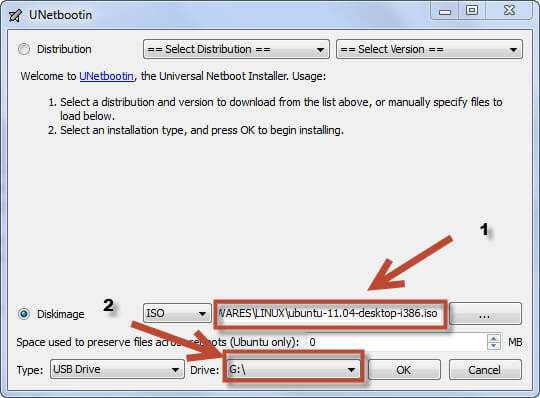
5. Press OK.
6. Wait until it finishes copying all the files and making the drive bootable.
Boot Your Ubuntu Live USB
1. Plug the USB into the target computer.
2. Boot the computer and change the BIOS boot order to your USB drive.
3. Watch the video below if you don’t know how to change the boot order from your BIOS:
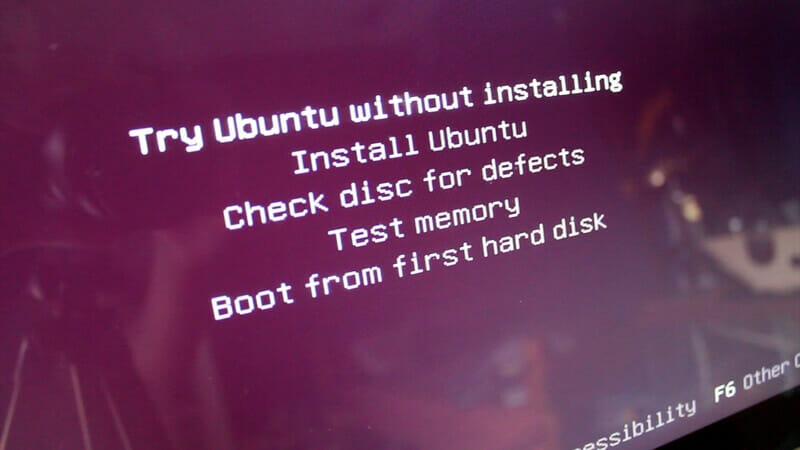
4. After your computer boots from the USB, you will see the Ubuntu boot screen. Choose “Try Ubuntu without installing”.
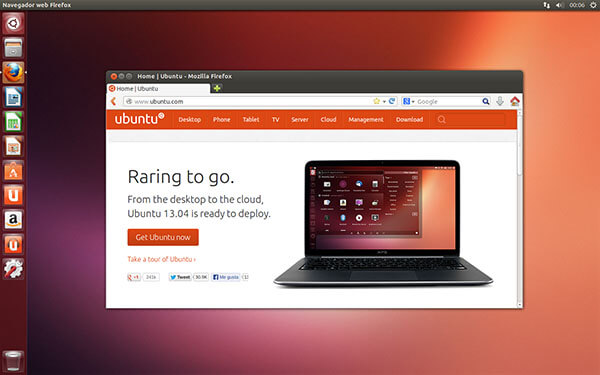
5. If successful, you will see the Ubuntu Desktop like the image below: