My WordPress architecture is Docker images on Dokploy: code ships inside the image, uploads live in a volume, and nothing reaches production until I tag a release. That makes the site easier to maintain, but shipping code in an image doesn’t make it read-only while the container runs.1
The short version: image-based deploys give me releases I can deploy again exactly, and a read-only filesystem is a separate control that this blog doesn’t turn on yet.
Revisiting my old WordPress security article in 2026 made me want to write the setup down. HTTPS, two-step authentication and updates still matter, but everything around them changed. I wanted the site easier to maintain, with tighter security boundaries and room to grow, and figuring out how the pieces fit was part of the fun.
How this WordPress architecture separates code and content
Code ships in images, uploads live in a volume, and nothing reaches production until I cut a release.
Four containers built from one webroot
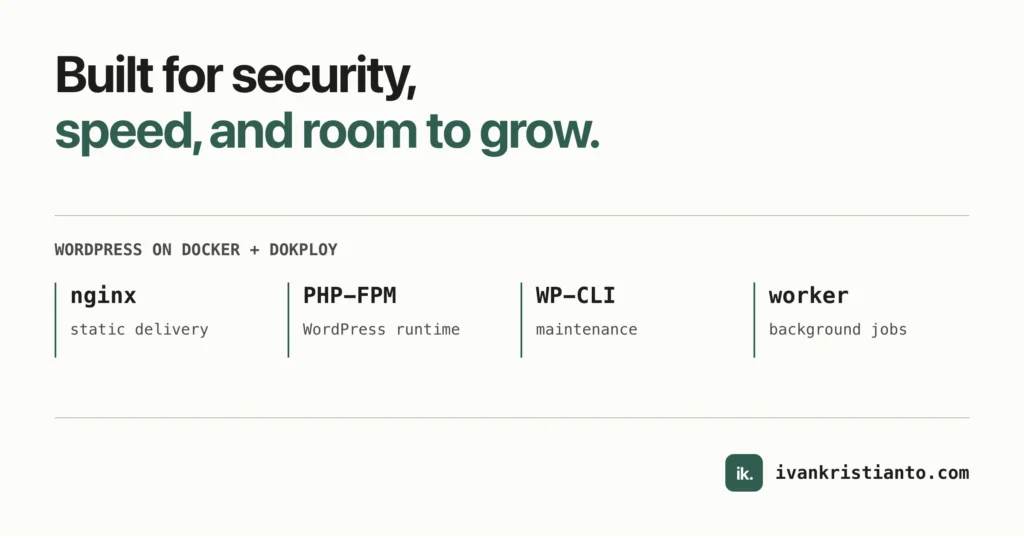
The deployment config runs PHP-FPM, nginx, WP-CLI and a background embedding worker as separate services. The PHP image holds WordPress core, the plugins Composer installs, the theme and the built assets. The nginx image copies its public files from that same app build, so both serve the same webroot.2,3,4
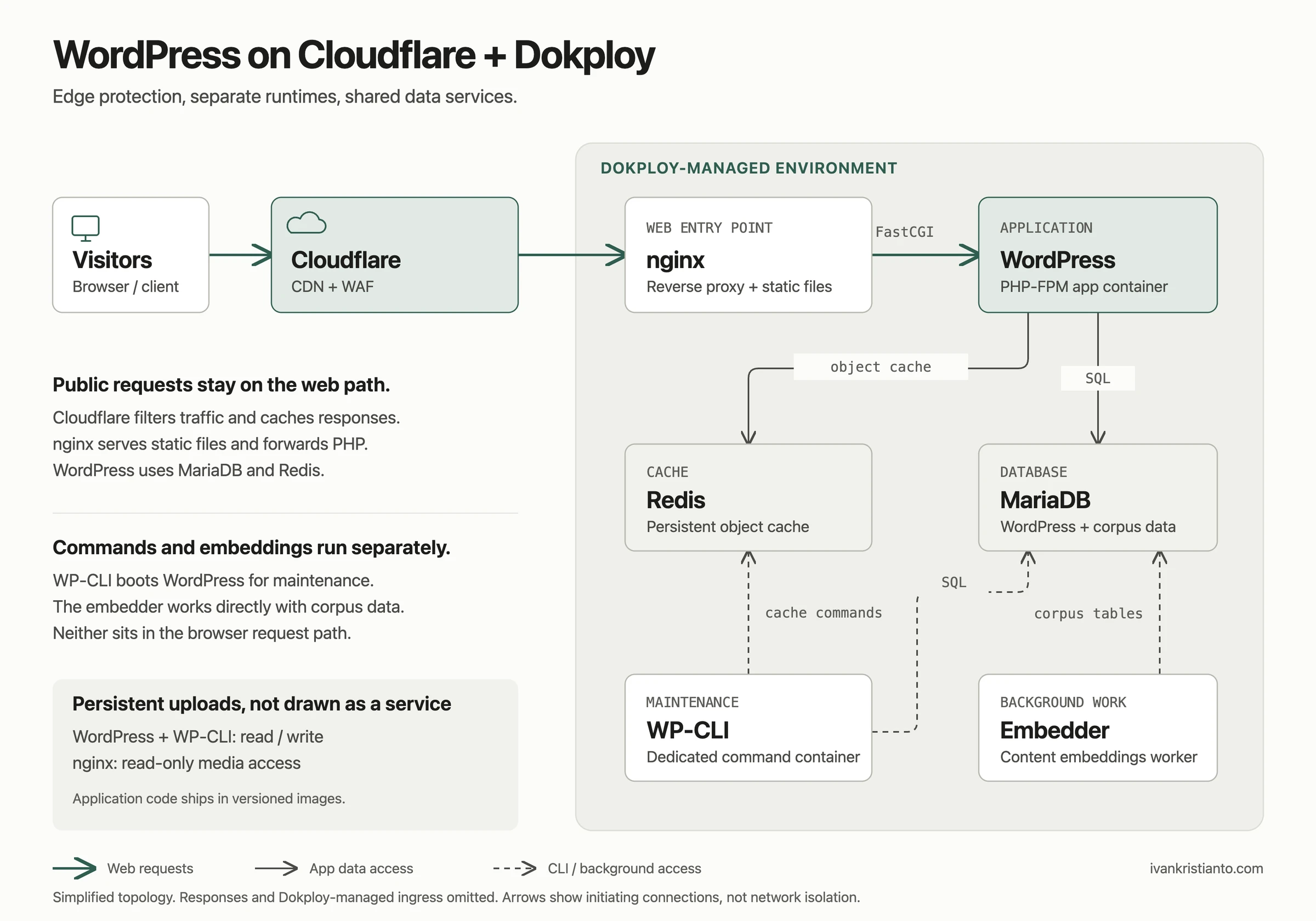
The embedding worker is there because I want room for jobs that shouldn’t run inside a web request. It gets its own runtime config, although its network and database access still need their own review.5
Uploads live in a volume
Media has a different life from code. WordPress has to save a photo without me rebuilding an image for it. The app container mounts uploads:/var/www/app/wp-content/uploads, nginx mounts the same path read-only with :ro, and WP-CLI gets the volume too for maintenance.5
I didn’t put the whole WordPress directory in a volume. That would mix code and content again, and a volume can hide files that a newer image ships.6
Releases happen on a tag
Merging to main doesn’t deploy anything. The build workflow runs when I push a release tag or start it by hand, and only the tag path calls the Dokploy webhook. The nginx build pulls the app image by its digest, so it can’t pick up some other app image that a moving tag happens to point at.3
Dokploy gives me the Compose deployments, environment config, per-service logs and monitoring.7 The server only runs the containers. The application code lives in the images, not on the server’s disk.
Turning off dashboard edits doesn’t make files read-only
The production config blocks code changes from the WordPress dashboard, but the files inside the container can still be written.
What the two constants do
docker-compose.prod.yml sets DISALLOW_FILE_EDIT and DISALLOW_FILE_MODS to true, and doesn’t set read_only: true on any service.5 The first constant turns off the plugin and theme editors. The second also blocks installing and updating plugins and themes from the dashboard, so it covers the editors on its own.8
That fits an image-based workflow. A plugin updated from the dashboard would make the running container drift from the release image, and the dashboard would become a second way to deploy. The trade-off is that security updates now wait for my build and release, so that process has to be quick.
Docker’s writable layer is still there
Those constants are WordPress settings. A PHP process that writes a file doesn’t hit an operating-system error because of them. Docker puts a writable layer on top of the image’s read-only layers, and a process can change files there whenever the file permissions allow it.1
You can see the difference with two throwaway BusyBox 1.36 containers. They have no mounts and no network, and each one only tries to create a file:
docker run --rm --network none --user 1000:1000 \
  busybox:1.36 sh -c \
  'if touch /tmp/write-probe 2>/dev/null; then echo writable; else echo write-denied; fi'

docker run --rm --network none --user 1000:1000 --read-only \
  busybox:1.36 sh -c \
  'if touch /tmp/write-probe 2>/dev/null; then echo writable; else echo write-denied; fi'
The first prints writable. The second, with Docker’s read-only root filesystem, prints write-denied:
writable
write-denied
In Compose the same switch is the service-level read_only setting.9 This shows Docker’s behaviour, not whether WordPress runs with it.
File permissions don’t fill the gap either. A 755 directory and a 644 file both let their owner write.10 If PHP runs as that owner, those familiar numbers don’t stop it. So what this blog has today is image-based deployment. Its code isn’t read-only.
What a read-only WordPress would still need
A read-only root filesystem is the step after image-based deploys, and most of the work is finding every place WordPress still needs to write.
Every write needs a place to go
Uploads are covered. Temporary files, caches, generated files and whatever runs at container startup each need an explicit writable path, or the first thing that breaks tempts you to give broad write access back.
Test it in an isolated environment before production. Upload an image and check the thumbnails appear, and in the same run confirm a write to the theme and plugin directories is denied. Run the scheduled jobs and restart the containers too, so the test covers what publishing needs as well as what it must forbid.
Uploads must never run as PHP
Writable media needs its own execution boundary. OWASP recommends keeping uploads on a separate server or outside the webroot where you can, and treating upload handling as several controls instead of trusting an extension check.11 PHP runs whatever file the interpreter is handed, and nginx picks the handler from its location routing.12,13 So check that nothing under uploads is routed to PHP. A missing executable bit isn’t that control.
What read-only files won’t protect
Read-only code closes one place an attacker could leave a modified file. It doesn’t stop a stolen account, a malicious database change or vulnerable code running in memory. Replacing a container doesn’t clean the uploads volume either, so backups have to cover uploads and the database separately from the release images. WordPress’s own hardening guide treats containment, updates and recovery as ongoing work.14
If you’re taking the same approach
- Separate application releases from uploads and database state.
- Check the runtime user, file ownership and mounts before you call the code read-only.
- Test media publishing next to denied code writes in an isolated environment.
- Keep a quick patch-and-release process once dashboard updates are off.
For the browser side of hardening, see the strict CSP work on this blog. Image deploys and browser policies protect different parts of a request.
Sources
- 1 https://docs.docker.com/engine/storage/ a b
- 2 https://github.com/ivankristianto/ik2/blob/389872aad7054709df93fc9e54e08954105ad908/Dockerfile ↑
- 3 https://github.com/ivankristianto/ik2/blob/389872aad7054709df93fc9e54e08954105ad908/.github/workflows/build.yml a b
- 4 https://github.com/ivankristianto/ik2/blob/389872aad7054709df93fc9e54e08954105ad908/docker/nginx/Dockerfile ↑
- 5 https://github.com/ivankristianto/ik2/blob/389872aad7054709df93fc9e54e08954105ad908/docker-compose.prod.yml a b c
- 6 https://docs.docker.com/engine/storage/volumes/ ↑
- 7 https://docs.dokploy.com/docs/core/docker-compose ↑
- 8 https://developer.wordpress.org/advanced-administration/wordpress/wp-config/#disable-plugin-and-theme-update-and-installation ↑
- 9 https://docs.docker.com/reference/compose-file/services/#read_only ↑
- 10 https://developer.wordpress.org/advanced-administration/server/file-permissions/ ↑
- 11 https://cheatsheetseries.owasp.org/cheatsheets/File_Upload_Cheat_Sheet.html ↑
- 12 https://www.php.net/manual/en/features.commandline.usage.php ↑
- 13 https://nginx.org/en/docs/http/ngx_http_core_module.html#location ↑
- 14 https://developer.wordpress.org/advanced-administration/security/hardening/ ↑