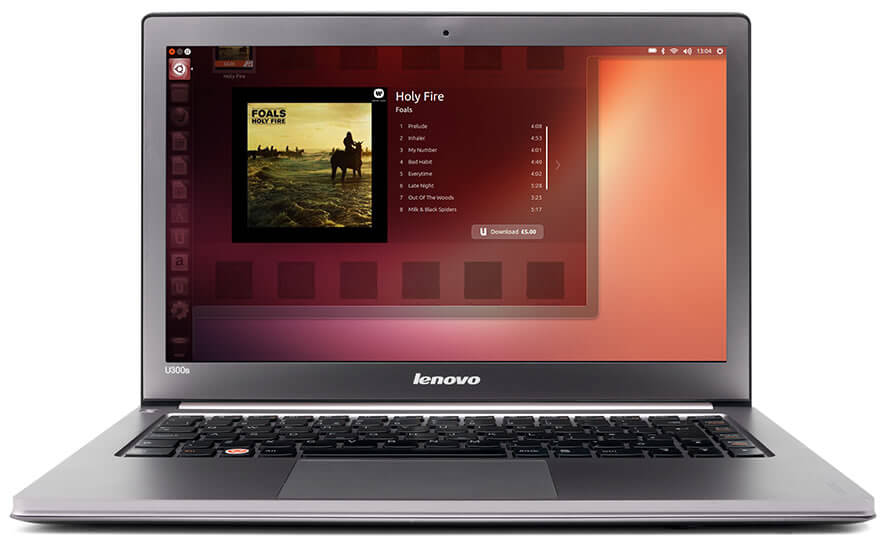
If you need a free operating system to install on your PC or laptop, perhaps you can go for Ubuntu. Yes, this operating system is free and it is designed by the famous company called Canonical (based on the Linux kernel). Since being spread to the public, it has become very popular and many readers voted it as the most popular Linux distro.
If this is your first time using this Linux OS, you shouldn’t be afraid of giving it a try, although there are some features that may not be familiar. There are some important points about it you may want to know, like how to customize the panel. Basically, this operating system has a top panel and a bottom panel by default. If you wish to have only the bottom panel appear, you can simply delete the top panel through right-click and go for the command “Delete This Panel”. Then, right-click the top panel and pick “Properties” and change the orientation from “Top” to “Bottom”.
What if you want to set a fully transparent panel? Well, Ubuntu is customizable. To make the panel transparent, move the mouse to Applications or Main Menu and choose Accessories and click Terminal. At the new terminal, type this command:
cp -R /usr/share/themes/Ambiance ~/.themes/The next commands will be different for each Ubuntu version. For the 10.10 version:
gedit ~/.themes/Ambiance/gtk-2.0/apps/gnome-panel.rcWhereas for 10.04:
gedit ~/.themes/Ambiance/gtk-2.0/gtkrcThereafter, find the line of bg_pixmap[NORMAL] = "img/panel.png" for Ubuntu 10.10 and bg_pixmap[NORMAL] = "panel_bg.png" for 10.04. Then, add a # in front of each line and save the file. Continue the step by going to System > Preferences > Appearance and selecting another theme, then returning again to the Ambiance theme.
Besides making the theme transparent, you will also be able to customize the theme. All you need to do is go to System > Preferences > Appearance. Select the “Customize” button under the “Theme” tab and go for “New Wave” theme. Afterward, click another control item under the “Controls” tab, for example “Ambiance”, and click “Close” button. Lastly, you can save the new setting as your new theme.
Additionally, other simple steps to customize your Ubuntu are available throughout the internet.