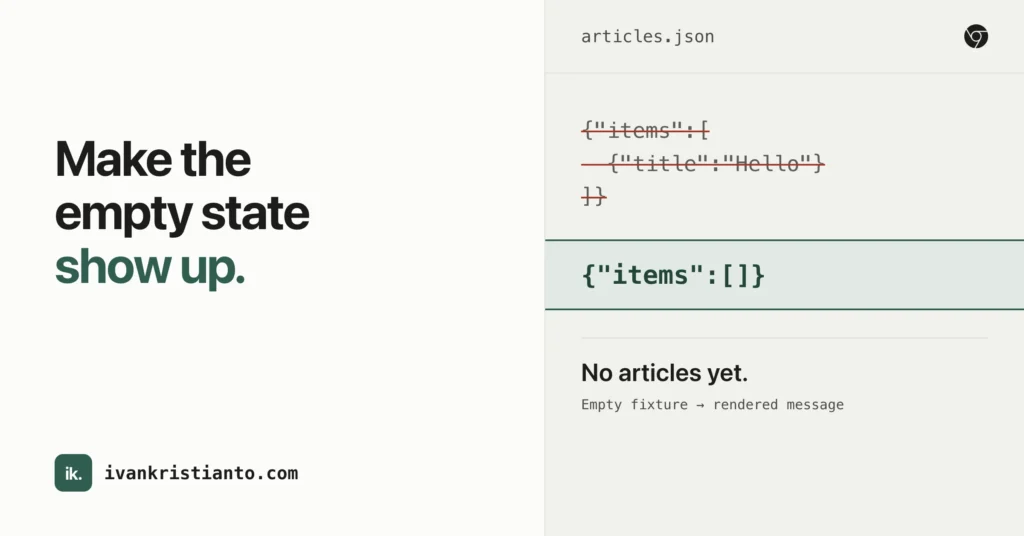
Your article list looks fine with a few short titles. But what happens when the API returns nothing, or a title takes up four lines? Chrome DevTools overrides let you replace the response your browser receives, including fetch and XHR responses, so you can try those states without waiting for a backend fixture.7
The same tool can change HTTP response headers. You can test how a page behaves under a different permissions policy without changing nginx or deploying application code.2
Start with a read-only request on a local or staging site. An overridden response doesn’t mean the request never reached the server. That’s important enough to keep beside the setup, rather than discover after testing a checkout.3
Make the empty state show up
Imagine an article list whose endpoint returns this shape:
{"items":[{"title":"Hello"}]}The object is an example, not a format DevTools requires. Keep your application’s actual structure: if it expects a top-level array, pagination fields, or nested data, preserve those.
To replace its response:
- Open DevTools and select Network.
- Reload the page, filter for Fetch/XHR, and find the article-list request.
- Right-click it and choose Override content.
- If prompted, select a dedicated local folder and allow DevTools access to it.
- In Sources, replace the saved response, save with Command+S (Control+S on Windows or Linux), and reload.1
For this example, the empty fixture is:
{"items":[]}
Now inspect the part of the interface that normally disappears behind real data. Does it show a useful empty-state message? Does the loading indicator stop? Can the reader tell the difference between an empty list and a broken page?
The small demo behind these notes renders No articles yet. for that fixture. Your application needs its own empty-state handling; DevTools supplies different input, not the missing UI.
Then try a long title:
{"items":[{"title":"An unusually long article title that keeps going when a card was only designed for a short heading"}]}
Look at the card at a narrow width. Check wrapping, buttons pushed below the fold, and anything clipped by a fixed height. Keep one fixture per question while testing, so you know which change exposed the problem.
This is a good fit for a response you need briefly. For a regression test the whole team will run, move the fixture into the project’s test setup afterwards.
Change response headers with DevTools overrides
Suppose a page offers a location-based feature. You want to check its fallback when the page’s permissions policy blocks geolocation, rather than depend on someone clicking the browser’s permission prompt.
- In Network, find the page’s document request.
- Right-click it and choose Override headers.
- In Headers > Response Headers, add
Permissions-Policywith the valuegeolocation=(). - Reload the page to apply the override.2
That empty allowlist blocks geolocation for the document. It tests a policy restriction, which is a different condition from a visitor denying permission.6
On a local test page, Chrome’s policy check changed from allowed to blocked when the server supplied that header. Whether your application displays a useful fallback still depends on its own error handling.
These are response headers. This editor isn’t changing the outgoing request’s Authorization header, cookies, or request body.2
CORS is another documented use for header overrides, but don’t treat it as a universal CORS repair. The current DevTools implementation skips OPTIONS requests, so this workflow isn’t a dependable way to replace a failing preflight response. A header override also doesn’t fix the server for anyone else.1,3
Keep a CSS experiment across reloads
For a layout problem, DevTools overrides can replace the external CSS file delivered over the network. Edit it in Sources, save, and reload. The saved replacement survives page loads.1
That’s useful when you want to compare a wrapping or spacing change with several data fixtures. It doesn’t put the change into your repository.
Editing the DOM tree in Elements doesn’t create a persistent override. CSS inside an HTML document has another wrinkle: edits in the Styles pane aren’t saved as overrides, so edit the HTML file in Sources instead.1
For a source-mapped application, use the deployed JavaScript or CSS resource for this experiment. Don’t expect editing a TypeScript or SCSS source view to run your build pipeline.1
A JSON error isn’t an HTTP error
Replacing the article list with an error-shaped object can exercise a branch that reads that object. It doesn’t establish that your HTTP-error handling works.
In the DevTools source checked for these notes, a body override fulfills the response with HTTP 200. Header-only overrides retain the original response status. The upstream tests cover this distinction, including an original 404 becoming 200 when its body is replaced.4,5
If the code you need to test depends on response.ok being false, use a test server or mocking tool that explicitly controls the status code. Check the status in Network instead of inferring it from the JSON.
Overrides also intercept at the response stage. The backend may already have processed the request before DevTools replaces what the browser sees.3
Don’t use this as a safety barrier around purchases, messages, or other writes. A convincing mock success screen tells you nothing about whether the real operation ran.
Turn the overrides off afterwards
Open Sources > Overrides and clear Enable Local Overrides when you’re done. The saved files remain available for another session.1
Local Overrides also disables the browser cache, so don’t use an overridden reload as a normal cached-performance measurement.1
The examples here have separate checks: the JSON fixtures were exercised against a small rendering demo, and the permissions-policy header was checked on a local HTTP server. The DevTools menu workflow follows Chrome’s documentation; it hasn’t had an end-to-end UI check for these notes.
If you’re using this on your own site:
- Pick a read-only endpoint and keep its actual response structure.
- Try an empty result and a long value before adding more fixtures.
- Inspect the response status as well as its body.
- Move a confirmed fix into the codebase, then disable the override and check again.
For another browser check worth keeping close by, see Chrome Modern Web Guidance.
Sources
- 1 https://developer.chrome.com/docs/devtools/overrides a b c d e f g
- 2 https://developer.chrome.com/docs/devtools/network/reference a b c
- 3 https://raw.githubusercontent.com/ChromeDevTools/devtools-frontend/5b236ef3b041d877dfb08d9b57c8b48a22c687f5/front_end/models/persistence/NetworkPersistenceManager.ts a b c
- 4 https://raw.githubusercontent.com/ChromeDevTools/devtools-frontend/5b236ef3b041d877dfb08d9b57c8b48a22c687f5/front_end/core/sdk/NetworkManager.ts ↑
- 5 https://raw.githubusercontent.com/ChromeDevTools/devtools-frontend/5b236ef3b041d877dfb08d9b57c8b48a22c687f5/front_end/core/sdk/NetworkManager.test.ts ↑
- 6 https://developer.chrome.com/docs/privacy-security/permissions-policy ↑
- 7 https://developer.chrome.com/blog/devtools-tips-34 ↑