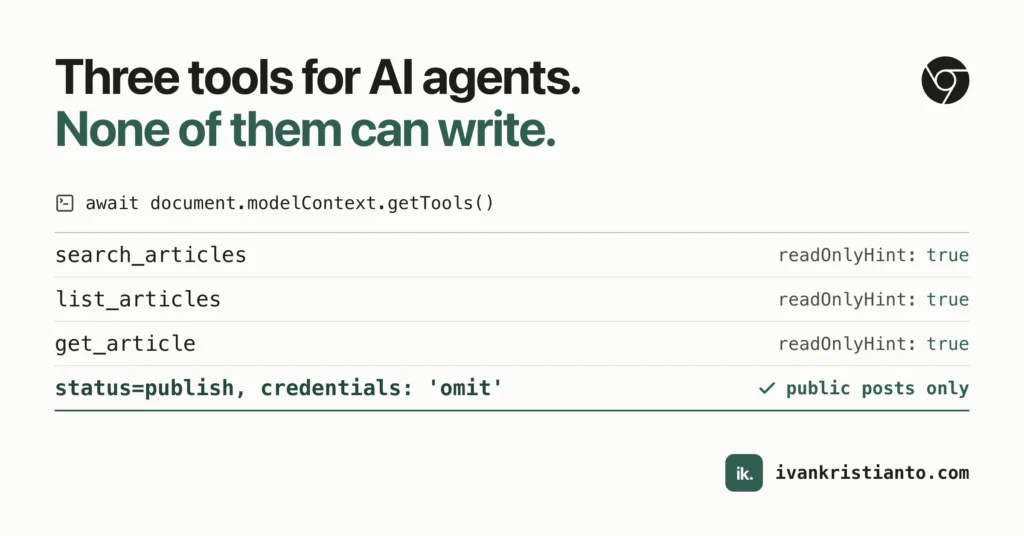
On October 25, 2026, I added WebMCP tools to this blog. An agent in a compatible browser can search the articles, list them by topic, and read one in full. The implementation went into v0.14.0.Source 8,Source 9
The JavaScript API works. Using it through an assistant has been less straightforward. It didn’t work in my attempts with Claude Code or Claude Desktop. ChatGPT through its browser can work, but the experience still isn’t good.
I’m writing this for my own records: what I built, how to check it, and what still needs work.
Three tools over the articles I already publish
WebMCP lets a page describe functions that a browser agent can discover and call. Each tool has a name, a description, an input schema, and a JavaScript callback. It’s still a proposed web API, not a completed W3C standard.Source 1,Source 2,Source 5
For this blog, the tools are small:Source 8
search_articlestakes keywords and returns titles, links, dates, and summaries.list_articlesreturns recent articles, optionally filtered by topic and format.get_articletakes an article URL or slug and returns its text.
There isn’t a tool for editing a post or publishing one. The callbacks use the WordPress REST API that’s already there.Source 8,Source 9
Search and list results are short enough to browse. The agent can then call get_article for the full text of something relevant. The implementation converts the rendered HTML into text, removing script and style elements along the way. That makes the response easier to consume, but it doesn’t make the text trustworthy instructions for an agent.Source 8,Source 3
The tool module contains the schemas and callbacks. Input checks and URL building live in a separate helper file, where they can be tested without a browser.Source 8,Source 9,Source 12
The page has to be open in the right browser
My theme checks for document.modelContext before importing the tool module. Browsers without that API skip the WebMCP chunk and keep the normal site.Source 10
This is different from connecting an MCP server to an assistant. An MCP server can offer tools independently of an open webpage. These WebMCP tools belong to the page the browser is visiting. Registering them doesn’t automatically add a server connection to Claude Code or Claude Desktop.Source 4,Source 6
Chrome for Developers illustrated the distinction in a post: MCP exposes tools from a server; WebMCP registers them in the live page and runs them in its JavaScript runtime. The two can complement each other. The graphic includes clients that reach the page through browsers or webviews, rather than tying WebMCP to one model provider.Source 15
That distinction matters when testing. A working callback in a browser doesn’t establish that the assistant you’re using can discover it.
OpenAI documents site tools in the ChatGPT desktop app’s built-in browser. Its implementation supports a subset of WebMCP, with availability depending on the client, model, account rollout, and workspace settings. The documented route is JavaScript registration in the top-level page; declarative forms and tools inside iframes aren’t supported there.Source 6
My unsuccessful Claude attempts aren’t enough to conclude that Claude can never call these tools. Chrome also documents a separate DevTools MCP debugging route. That hasn’t been tested as a solution to my setup.Source 14
Keeping the requests on the public side of WordPress
Every posts query explicitly asks for status=publish. The fetch calls also use credentials: 'omit', rather than carrying the visitor’s browser credentials into these reads.Source 8,Source 9
The Chrome graphic describes WebMCP working in the user’s current session. That doesn’t mean every request must carry login credentials. These tools run in the page, but their article fetches deliberately stay anonymous.Source 15,Source 8
You can check the underlying request from a console on this blog:
const response = await fetch(
  '/wp-json/wp/v2/posts?status=publish&search=webmcp&per_page=5&_fields=id,title,link',
  { credentials: 'omit' }
);
if (!response.ok) throw new Error('HTTP ' + response.status);
const posts = await response.json();
console.log(posts.map(post => post.title.rendered));
The check for these notes returned HTTP 200 and the title of my Modern Web Guidance post. That’s the data the public REST query returned, without an assistant involved.Source 13
WordPress’s normal REST cookie authentication requires a REST nonce too. So I wouldn’t explain this as “cookies alone expose drafts.” Omitting browser credentials keeps these callbacks deliberately on the anonymous path; WordPress still owns the server-side permissions.Source 7
The tool annotation readOnlyHint: true describes the intended behavior. It doesn’t enforce authorization or prevent a callback from doing something else. The implementation has to match the hint.Source 2,Source 3,Source 6
There are checks around the inputs too. List and search calls default to 10 articles and reject limits outside 1 to 20. Article lookup rejects URLs from another origin and paths that don’t match a supported article reference. Password-protected entries are filtered from result lists, and fetching one directly returns an error.Source 8,Source 9
The protected-content filter has unit coverage. The live browser checks used an anonymous session, though, and didn’t create protected, private, or draft posts to test against. That’s still a gap.Source 12
Test the API before asking an assistant
Chrome’s setup instructions describe the origin trial and the local chrome://flags/#enable-webmcp-testing flag. With support enabled, open the blog, let its scripts load, and inspect the registered tools.Source 1
This console snippet discovers the actual search tool and calls it:
const tools = await document.modelContext.getTools();
const search = tools.find(tool => tool.name === 'search_articles');
if (!search) throw new Error('search_articles is not registered');
const result = await document.modelContext.executeTool(
  search,
  { query: 'webmcp', limit: 5 }
);
console.log(JSON.parse(result));
Verification on October 27 used Chrome 156.0.8078.48 with WebMCP testing enabled. All three tools were discoverable. The search returned one article, the Modern Web Guidance post, with its URL, date, and summary.
That checks registration and execution. A real assistant still has to choose the tool, pass useful arguments, read the result, and answer the reader’s question.
The repository has helper tests and a browser smoke test. From the checkout:
node --test tests/webmcp-rules.test.mjs
node scripts/webmcp-smoke.mjs https://www.ivankristianto.com/
The helper suite passed 20 tests. The browser test passed against the live site, covering listing, searching, reading an article, selected invalid inputs, and published-only query parameters.Source 11,Source 12
Cancellation has its own helper tests. A cancelled call can stop waiting for a category lookup without cancelling the shared lookup that another call still needs. That behavior was checked in the unit suite, rather than inferred from the ordinary browser calls.Source 9,Source 12
The assistant experience still needs work
The JavaScript side gives me something concrete to inspect. My experience with the assistants is still mixed, and I don’t have enough recorded prompts or traces to explain every failure yet.
Next, I need to record a reader task from start to finish: ask for an article, see whether the assistant discovers the tools, inspect what it calls, and compare its answer with the article.
For now, I’m keeping this as a small, read-only feature. It exposes the articles without adding editing or publishing tools, while the ordinary search and article pages remain available.Source 8,Source 10
If you want to try it
- Start with an operation your site already supports, such as searching public articles.
- Check registration and execution directly before debugging an assistant’s behavior.
- Keep inputs narrow and enforce permissions in the application, regardless of the tool’s annotations.
- Record which browser and assistant actually worked. API availability and a useful reader experience need separate checks.
Sources
- 1 https://developer.chrome.com/docs/ai/webmcp a b
- 2 https://developer.chrome.com/docs/ai/webmcp/imperative-api a b
- 3 https://developer.chrome.com/docs/ai/webmcp/secure-tools a b
- 4 https://developer.chrome.com/docs/ai/webmcp/compare-mcp ↑
- 5 https://webmachinelearning.github.io/webmcp ↑
- 6 https://developers.openai.com/codex/webmcp a b c
- 7 https://developer.wordpress.org/rest-api/using-the-rest-api/authentication ↑
- 8 https://raw.githubusercontent.com/ivankristianto/ik2/v0.14.0/wp-content/themes/ik2/src/webmcp.js a b c d e f g h i
- 9 https://raw.githubusercontent.com/ivankristianto/ik2/v0.14.0/wp-content/themes/ik2/src/webmcp-rules.js a b c d e f
- 10 https://raw.githubusercontent.com/ivankristianto/ik2/v0.14.0/wp-content/themes/ik2/src/index.js a b
- 11 https://raw.githubusercontent.com/ivankristianto/ik2/v0.14.0/scripts/webmcp-smoke.mjs ↑
- 12 https://raw.githubusercontent.com/ivankristianto/ik2/v0.14.0/tests/webmcp-rules.test.mjs a b c d
- 13 https://www.ivankristianto.com/chrome-modern-web-guidance ↑
- 14 https://developer.chrome.com/docs/devtools/agents/webmcp-debugging ↑
- 15 https://x.com/ChromiumDev/status/2114776553481445523 a b