Data privacy is important. You need to keep it safe and store it on your hard drive or flash drive only. You don’t want your data to end up in the wrong hands. You need to secure your data where you store it. One technique to protect your data is to encrypt it.
To encrypt your data, you can use TrueCrypt. TrueCrypt is an open source software that helps you set up and maintain an on-the-fly encrypted volume. On-the-fly encryption means data is automatically encrypted or decrypted right before it is loaded or saved, without any user intervention. You need a keyfile and/or a password to access the data stored in an encrypted volume (file). TrueCrypt encrypts the entire filesystem — including file names, folder names, contents of every file, free space, metadata, and so on.
TrueCrypt features:
- Creates a virtual encrypted disk within a file and mounts it as a real disk.
- Encrypts an entire hard disk partition or a device, such as a USB flash drive.
- Encryption is automatic, real-time (on-the-fly) and transparent.
- Provides two levels of plausible deniability, in case an adversary forces you to reveal the password: * Hidden volume (steganography). * No TrueCrypt volume can be identified (volumes cannot be distinguished from random data).
- Encryption algorithms: AES-256, Blowfish (448-bit key), CAST5, Serpent, Triple DES, and Twofish. Mode of operation: LRW (CBC supported as legacy).
To install TrueCrypt on Ubuntu:
- Download the installation file from TrueCrypt official site.
- Select the right architecture for your Ubuntu.
- Unpack it and run the setup.
- After it finishes it will be available under Applications > Accessories > TrueCrypt.
How to encrypt your flash drive with TrueCrypt in Ubuntu:
- Run TrueCrypt.
- Create Volume.
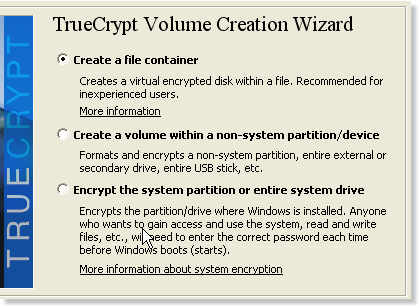
- In the TrueCrypt volume creation wizard, select “Create a volume within partition drive” option. Click “Next”.
- Leave it at the default “Standard TrueCrypt volume”. Click Next.
- Select the volume location. Choose where your USB flash drive is mounted. Click Next.
- Choose the encryption algorithm and hash algorithm. AES or TwoFish are strong encryption algorithms. Click Next.
- It will ask how large your encrypted partition should be. If you want to encrypt the entire flash drive, leave it as default. Click Next.
- Set the volume password — this is recommended to be at least 20 characters. Alternatively you can use generated keyfiles. Store them safely. Click Next.
- Format the volume file. It will ask what file system you want to use for your flash drive. Ext3 would be good.
- Choose whether you want cross-platform support for your mounted volumes or not. Click Next.
- Format the TrueCrypt volume file by clicking the “Format” button.
- This will take a while depending on how large your flash drive is.
To mount an encrypted flash drive:
- Plug in your flash drive and run TrueCrypt.
- Select the encrypted volume device.
- Select an empty slot. TrueCrypt offers over 60 slots to mount more than one encrypted volume.
- Click on the “Mount” button to mount the encrypted file. It will ask you for the password or keyfiles.
- If you are authenticated, you will see a new mounted volume.
To unmount an encrypted flash drive:
- Open TrueCrypt.
- Select the mounted slot.
- Click “Unmount” button.